
WiFi Setup & Troubleshooting
Your Wiley Buddy phone connects to the internet over WiFi, just like a laptop or tablet. During setup, you'll enter your home WiFi network name (SSID) and password. This article explains each setting and how to troubleshoot common WiFi connection issues.
The most common issue with WiFi not connecting is an incorrect WiFi name or WiFi password. Enter the WiFi Name and WiFi password EXACTLY as it appears with spaces, characters, & capitalization.
Until your Wiley Buddy has successfully connected to WiFi keep it connected to your home internet router with the included Ethernet cable.
After you make any change like WiFi Name or WiFi Password, please keep your phone connected to your home internet router with the ethernet cable and unplug your Wiley Buddy from power. Wait ten seconds, and then plug it back into power for the changes to apply.
Quick Summary
- WiFi Network Name (SSID) — The exact name of your home WiFi network. This is case-sensitive; "MyWiFi" and "mywifi" are different networks.
- WiFi Password — The password you use to connect other devices (phones, laptops) to your WiFi.
Tip: You can find your WiFi network name and password on a sticker on the bottom or back of your router. Your internet provider may also have given you a card with this information.
Troubleshooting WiFi Issues
Wiley Buddy phone won't connect to WiFi?
-
Check your SSID spelling — WiFi names are case-sensitive. If you are even one capital letter off it will not connect. For example:
Incorrect WiFi Name Entered myWiFi
Correct WiFi Name Entered MyWiFi
Spot the difference? The letter m was not capitalized in the entered WiFi name & it should have been MyWiFi.
- Check your password — re-enter it carefully in Settings. Copy/Paste if you can.
- After any changes make sure your phone is connected to your home internet router and disconnect the phone from power.
- Wait 10 seconds and plug it back into power.
- Once the phone has rebooted remove the ethernet cord. If the phone's LED light on the handset after 15 seconds stops blinking and no light appears you have successfully updated the WiFi credentials & can move the phone to anywhere in the home within range of the WiFi.
WiFi Credentials Correct & Not Connecting To WiFi?
The Wiley Buddy attempts to automatically select your home WiFi router security type. Occasionally it can't figure out the right security type of your router (eg WPA, WPA2, WPA3).
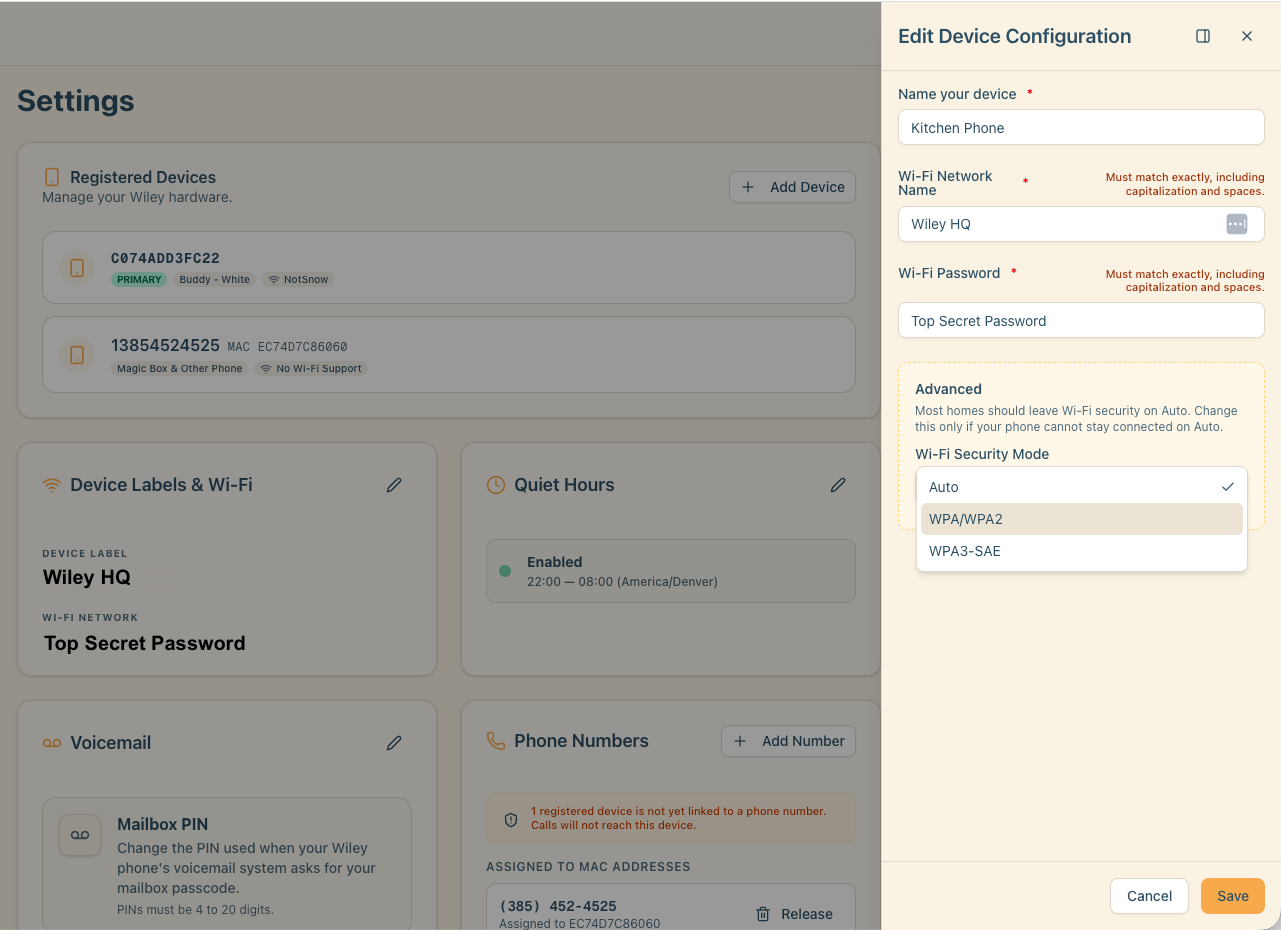
If you already triple checked your WiFi name/password & it looks correct, the next step is to use our Advanced section of the phone WiFi settings. Most routers on the market will work on WPA2.
- Find out what WiFi security settings your home internet router uses. Look at the sticker on the back of your router, it may say "WiFi security type". If not, quickly Google search your router make/model & WiFi security type. (eg. Google Nest Wifi Pro WiFi security type)
-
In the Wiley Parent Portal go to your WiFi Settings & select your WiFi security type from the dropdown list.
- Unplug Buddy from power for 10 seconds
- Connect Buddy to home internet router via Ethernet cord
- Plug phone back into power
- Wait until phone's main LED light on top stops flashing
- Make a test call with the Ethernet cable still plugged in.
- Successful Call w/Ethernet Cable Plugged In?
- Unplug Ethernet Cable from home internet router
- Test call on WiFi
- Successful Call Over WiFi? You are connected to your home WiFi! Go ahead and unplug from power & place it anywhere in your home within range of WiFi.
- No Successful Call w/Ethernet Cable Plugged In? Watch the video above or refer to the Setup Guide in the Wiley Parent Portal. (Likely you are plugged into LAN/WAN on your home internet router)
- Try making a guest network on your home internet router. Search your particular device on Google or use AI like Claude/ChatGPT to help you create a guest network. Once your guest network is created, enter in your guest WiFi credentials into the Wiley Web App, reboot the phone's power while it's connected to Ethernet, wait for it to come back online, and then test a call over WiFi.
- Successful Call w/Ethernet Cable Plugged In?
- If you still have troubles...quadruple check your WiFi name/password. The name/password is case/space sensitive so this is most often the fix.
- If you still have issues send us an email to hello@wileyphone.com and we'll help :)
Changing WiFi Settings Later
You can update WiFi settings at any time:
- Log into the Wiley parent portal.
- Go to Settings.
- Click Edit on the Device Configuration card.
- Update your WiFi name & password.
- Click Save and wait 2–3 minutes for the phone to update.
You may need to temporarily connect the phone via ethernet cable so it can download the new WiFi settings.
WiFi Connection Spotty? Tips To Improve WiFi Coverage In Your Home.
If you notice the phone doesn't work well, even close to your WiFi router, your phone might display that with intermittent red flashing at random times. Let's talk about WiFi and what we can do to improve your phone's WiFi signal.
The Wiley Buddy has modern WiFi abilities, it's 2.4GHz/5GHz & WiFi 6 - meaning it should be able to work well in most homes, even dense apartment buildings with lots of WiFi signals beaming around. Line of sight from your primary WiFi router or a mesh node (if you have one) is ideal but not necessary.
Move your router to the center of your home
This single change makes the biggest difference. WiFi signal radiates outward from your router in all directions — so if it's sitting in a corner office or tucked behind the TV cabinet in the living room, half that signal is headed straight into a wall or out into the yard. Moving it toward the middle of your home means every room gets a more even slice of coverage. You don't have to move your computer or TV — most devices connect wirelessly. Just find a new spot for the router itself.
Point your router's antennas straight up
It seems like a small thing, but antenna angle actually matters. WiFi signal doesn't spread out like a balloon — it spreads out flat, like a pancake. When the antenna is vertical, that "pancake" spreads horizontally across your floor plan, which is exactly what you want. Tilt the antenna sideways and most of that signal gets pointed at your ceiling or your floor instead of your rooms. Keep 'em pointing straight up and let the signal do its thing.
Get your router up off the floor
Floors are basically a signal graveyard. Set your router on a desk, shelf, or table — ideally at a mid-room height — and you'll see a real improvement. Avoid placing it on metal surfaces too, since metal reflects and scatters the signal instead of letting it pass through. Wood, plastic, or drywall? No problem. Metal filing cabinets or metal shelving? Those are signal killers.
Clear the path between router and phone
WiFi can pass through soft stuff like wood, drywall, and books without much trouble — but certain materials stop it cold. Mirrors, metal filing cabinets, kitchen appliances, thick brick walls, tile, stucco, and hardwood floors all block or seriously weaken your signal. Take a look at what sits between your router and where Wiley lives. If there's a big metal something in the way, try repositioning either the router or Wiley to get a cleaner line of sight.
Watch out for things that mess with your signal
Your WiFi shares airspace with a surprising number of household gadgets — and some of them love to butt in. Microwave ovens, baby monitors, older cordless phones, Bluetooth speakers, garage door openers, and even some fluorescent lights can all cause interference. You might not even notice it's happening, since WiFi will often just slow down or pause briefly rather than cut out completely. But on a call, that's exactly when you hear that little hiccup.
The easiest fix: move interfering devices away from your router. If you can't do that, try changing your router's WiFi channel in its settings — your internet provider's support line can usually walk you through this in a few minutes.
Try placing the Wiley Buddy in another spot in your home and see if it performs any differently.
We also can select the 5GHz band exclusively if we need if that doesn't help. Message us at hello@wileyphone.com if you need extra help.
Want A Backup WiFi?
If you have multiple WiFi services (eg. AT&T, Starlink, etc) we can manually set up a backup WiFi for you. Just message us at hello@wileyphone.com and we can add it for you.